Simple SaaS packages
Choose the setup that fits your operation
Start with local offline selling or choose an online package for cloud sync, backend monitoring, multiple users, branches, and business modules.
Loading current packages...
Install Freecom POS
Download Freecom POS
Choose your device and install Freecom POS for Windows, Android tablet, or mobile.
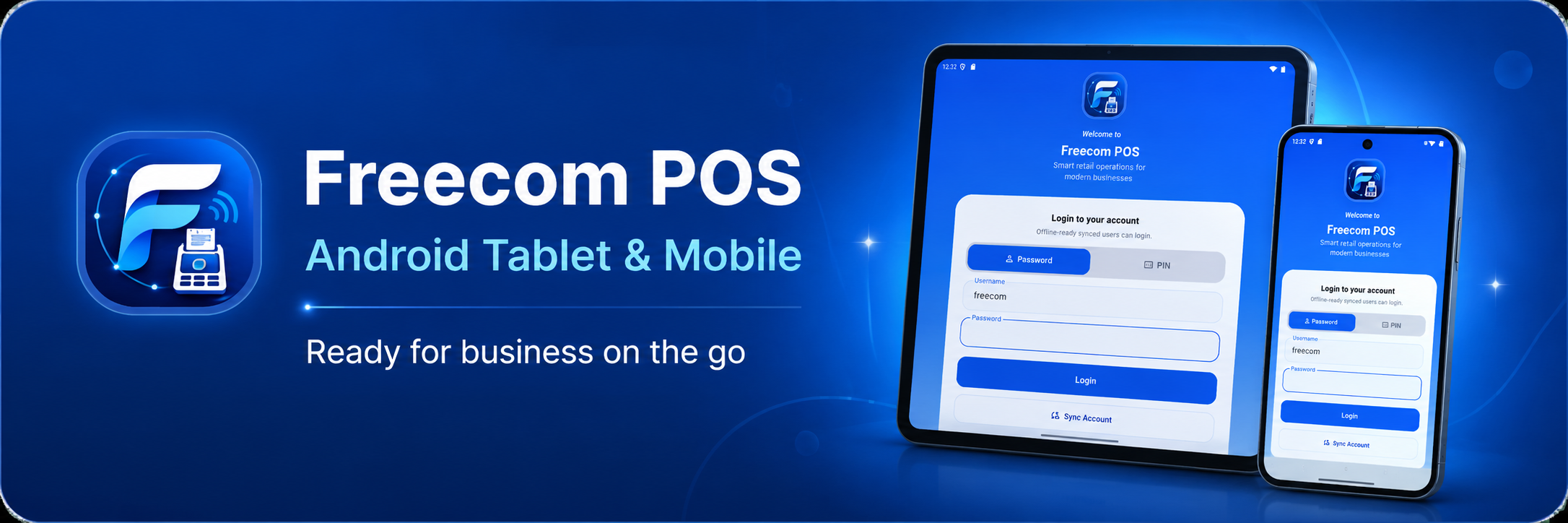
Android Tablet & Mobile APK
Run your store anywhere using an Android phone or tablet.
For Android tablet and mobile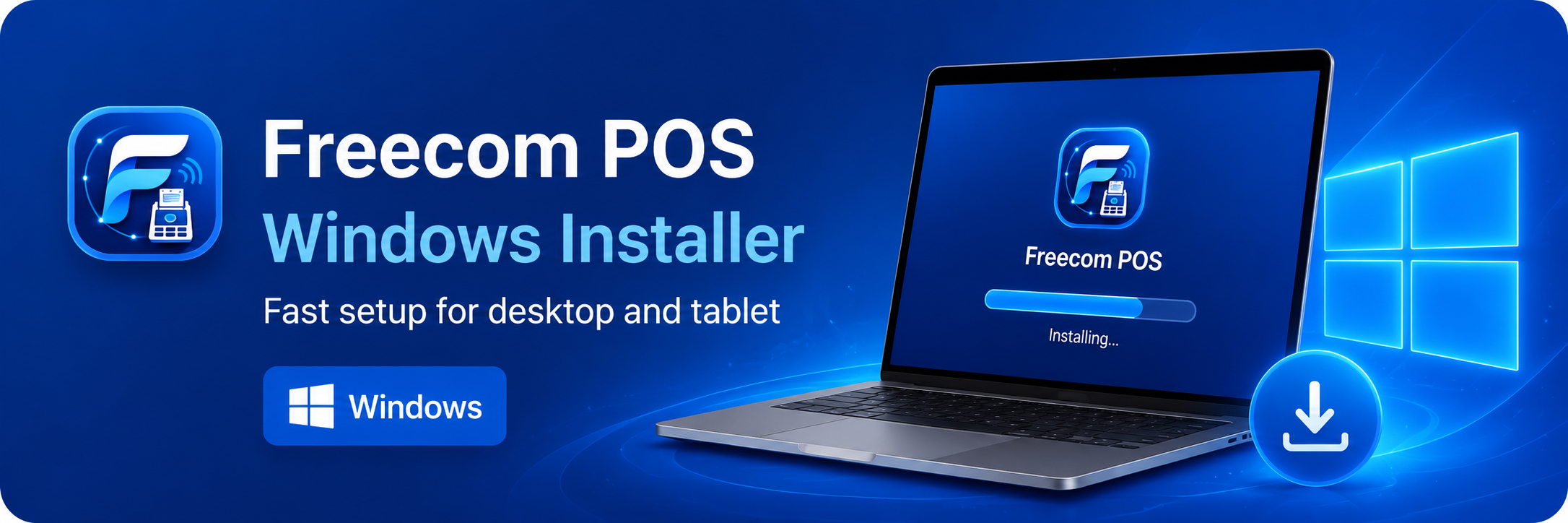
Windows Installer
Use Freecom POS on desktop cashier counters and office setups.
For Windows desktop and tablet modeOnly download Freecom POS from this official page. Contact Freecom IT Solution if you need installation support.
Need an account for your business?
Register your store and our team will review your request.
Current releases
App Version and Release Status
Android and Windows are available as Release 1.0.34 builds. Windows remains unsigned, so first-time installs may show a standard Windows security prompt.
Why choose Freecom POS
One POS system. Multiple business modes.
Run your store faster with fewer clicks, cleaner records, and tools that fit real Philippine business operations.
Core POS features
Everything a store needs for daily selling
Core POS tools come first, then optional modules can be unlocked as the business grows.
New Sale / Quick Checkout
Product Management
Inventory / Stock In
Sales History
Customer Records
Payment Methods
Reports
Barcode / SKU
Scanned from the application
A POS platform with real operational depth.
The website now reflects the actual Freecom POS application modules: cashier redesign, compliance command center, settings hub, customer ledger, purchasing, receiving, supplier payables, expiry tracking, KDS, laundry, coffee, backup, sync, and device management.
Cashier workflow
Product search, cart, discounts, open bills, payment references, receipts, shifts, and mobile cashier navigation.
BIR-ready preparation
Sales invoice foundation, invoice series, BIR profile, X/Z readings, audit trail, reprint control, and compliance reports.
Inventory and purchasing
Products, brands, categories, stock movements, purchase orders, receiving, suppliers, payables, and expiry batches.
Business modules
Laundry stages, Coffee recipes, KDS boards, Order Display, queueing, customer ledger, SMS alerts, and reports.
Access and devices
Owner, admin, manager, cashier, kitchen, laundry, display roles, branch terminals, device registration, and module visibility.
Backup and sync
Backup/restore, offline login after sync, refresh access, module permissions, device state, and support-safe backend handling.
Business modes
Business Modes & Optional Modules
Use Freecom POS for different business types by enabling only the modules you need. Laundry Shop is one module among many supported workflows.
Retail POS
Fast checkout, products, inventory, receipts, and daily sales.
Coffee Shop
Shared recipes with separate ingredient stock and low-stock alerts per branch.
Laundry Shop
Track orders and automatically deduct branch-specific laundry supplies.
Restaurant / KDS
Send orders to kitchen screens and manage food queues.
Order Display
Show customer-facing order status for service queues.
Pay Later / Open Bills
Save unpaid orders and settle them later with clear records.
Retail / Merchandise
Use variants, barcodes, suppliers, receiving, cost tracking, reorder suggestions, and wholesale pricing for merchandise stores.
Electronics & Appliances
Track serial numbers, IMEI, warranty claims, repair jobs, trade-ins, bundles, and A4 service forms.
Service Shop
Support service items, customers, payments, and receipts.
Rental
Future module for rental-style business workflows.
SMS Alerts
Send customer alerts from supported Android SIM devices.
Reports / Sales Monitoring
Review sales, cashier activity, payments, and performance.
Multi-branch
Keep sales, products, coffee ingredients, laundry supplies, terminals, and cashier activity separate per location.
Device Support
Device support
Use Freecom POS on Any Device
Available features may depend on device, printer, operating system, and enabled modules.
Android Phone
Good for mobile sellers, small shops, quick selling, and shops that need a compact Android device.
Android Tablet
Good for cashier counters, laundry shops, service shops, and touch-friendly daily operations.
Windows Desktop
Good for full cashier stations, product management, reports, inventory review, and office monitoring.
Android phone
Android tablet
Windows desktop/laptop
Bluetooth printer
USB printer
58mm receipt
80mm receipt
A4 receipt
Printer, SMS, and device security features depend on the device, operating system, printer model, and enabled account access.
Workflow Preview
Visual guide
See the main Freecom POS workflows
These previews help customers understand what each module looks like before using it on mobile, tablet, or Windows.
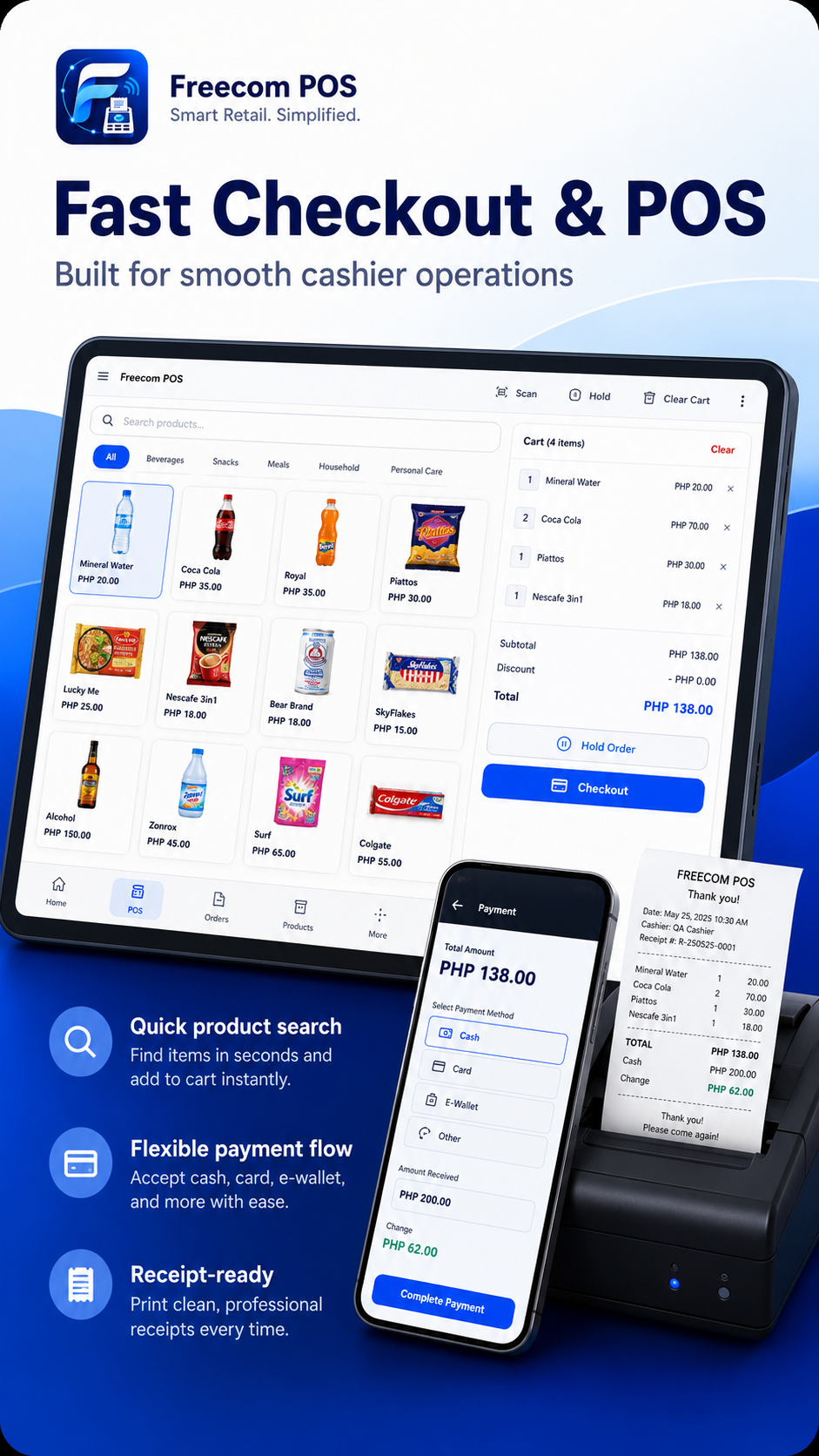
Fast Checkout & POS
Search products, add items to cart, accept payment, and print a clean receipt without extra steps.
Roles & Staff Access
Role-based help
Which guide is for Admin or Cashier?
Use this section to train staff faster. Roles and module access can be controlled through backend account sync when enabled.
Owner / Admin Setup
- Store settings
- Products and variants
- Inventory and stock alerts
- User management
- Module access
- Sales reports
- Backup / Restore
- Printer setup
Daily Selling Flow
- POS checkout
- Search or scan products
- Select variants and add-ons
- Open bills and Pay Now
- Print or preview receipt
- End-of-day sales if allowed
Reports and Monitoring
- Review sales summaries
- Monitor cashier activity
- Check stock and low inventory
- Help settle unpaid balances
Laundry Order Flow
- Create laundry orders
- Update washing, drying, and folding stages
- Print claim stubs and final receipts
- Send SMS if enabled
Food Order Flow
- View kitchen orders
- Mark orders ready
- Coordinate with cashier or order display
Customer Status Screen
- Show customer-facing order status
- Support queue-style service workflows
- Uses assigned display access
Printer Setup
Receipts and claim stubs
Printer Setup
Configure Bluetooth, USB/OTG, or Windows printing where supported. Printer settings are usually device-local, so each cashier device may need its own connection and test print.
58mm and 80mm receipt support depends on printer setup.
Actual Bluetooth/USB printing requires real-device testing.
SMS Alerts
Android SIM alerts
Customer SMS Alerts
SMS alerts can be used for customer notifications where enabled. Messages are sent by the Android device SIM, not by a backend API, and depend on SMS permission, SIM load, valid phone number, and a supported phone or tablet.
Works on Android devices with SIM support.
Windows, Wi-Fi-only tablets, and emulators do not send direct SIM SMS.
Actual SMS sending requires real-device testing.
Payment Support
Cash, e-wallet, and balances
Payment Methods, Pay Later, and Partial Payments
Freecom POS supports common payment tracking such as Cash, GCash, Maya, Card, Bank Transfer, Other, Pay Later, and Partial Payment. Available options depend on the store settings and enabled modules.
Pay Later appears in unpaid balances until settled.
Partial payment records paid amount and keeps remaining balance visible.
Account Sync & Module Access
Account sync and access
Account Sync & Module Access
Freecom POS can refresh account access from the backend. If the owner changes modules, subscriptions, or device access, the app can update after Sync Account without reinstalling.
If Laundry Shop is enabled in backend, Sync Account can make Laundry Shop available in the app.
If Laundry Shop is disabled in backend, Sync Account can lock the module after the next refresh.
Philippine Business Features
Local business fit
Made for Philippine Businesses
Freecom POS is designed for mini marts, coffee shops, sari-sari stores, groceries, pharmacies, hardware stores, and service businesses in the Philippines.
SaaS Growth Features
Phase 3 SaaS Growth
SaaS Growth Features for Business Control
Freecom POS is built to grow with Philippine businesses — manage subscriptions, lock modules, monitor sales, secure devices, and activate marketing tools when needed.
Subscription Plans
Control customer access by Starter, Pro, Business, or Enterprise plan.
Module Locking
Enable or lock POS modules depending on the customer’s package.
Device Binding
Protect accounts by allowing only registered devices to login.
Sales Monitoring Backend
View completed sales, transactions, cashiers, and devices from the backend dashboard.
App Version Control
Help customers stay aware of current app versions, beta status, and update notices.
Download Links
Keep Android and Windows downloads easy to access from the official website.
Messenger / SMS Alerts
Send business alerts, subscription reminders, and sales notifications.
Loyalty Points
Reward repeat customers with points and redemption rules.
Promo Engine
Create discounts, bundles, and sales promos for your store.
Multi-branch
Monitor all locations together or filter one branch without mixing its stock and transactions.
Module Control
Flexible package control
Only Pay for the Modules You Need
Business owners can start simple and unlock more features as they grow. Modules like Coffee Shop, Open Bills, Loyalty Points, Promo Engine, Kitchen Display, and Reports can be enabled depending on the selected plan.
POS Sales
Products
Inventory
Open Bills
Coffee Shop
Loyalty Points
Promo Engine
Sales Monitoring
Device Security
Device Binding & Security
Account protection
Secure Device Access
Freecom POS supports device binding so one account cannot be freely shared across multiple devices without admin approval.
A revoked device may show: "This device is not authorized. Please contact your administrator."
- First device registration
- Register authorized devices
- Revoke lost devices
- Reset device binding
- Delete device record
- Clear revoked devices
- Review active devices
- Block unauthorized login attempts
- Check last sync
- Monitor device online/offline status
Laundry Shop Guide Snapshot
Laundry module guide
Laundry Shop Guide Snapshot
Laundry Shop is designed for laundry businesses that need order tracking, customer records, SMS alerts, claim stubs, and stage monitoring. It is separate from normal POS product sales.
Retail selling flow
Use product grid, cart, checkout, and receipts for retail sales.
Order tracking flow
Use customer, service, kilos or pieces, stages, SMS, claim stub, and final receipt.
New Order
Processing
Ready for Pickup
Completed
Business coverage
Store types and businesses that can use this POS
Freecom POS can support many store types. Enable only the modules needed for the customer's actual business.
New Customer? Start Here
Set up Freecom POS in the right order
Follow this checklist before live selling. It keeps the shop setup clean, avoids missing printer or product details, and gives the customer a safe first backup.
- Setup store details
- Upload receipt logo
- Setup receipt printer
- Add products
- Create cashier account
- Test first sale
- Export first backup
- Enable low stock alerts
Find answers fast
What do you want to know or search for?
Grouped guides
User Guide Library
Pick a category and open the right guide in a popup. Detailed instructions stay organized and off the homepage.
Getting Started
Install, login, setup, beta status, and first handover.
POS Sales
Checkout, open bills, payments, customers, and receipts.
Products & Inventory
Products, stock, labels, low stock alerts, and variants.
Customers
Customer records, phone numbers, visits, and balances.
Printer & Receipt
Printer setup, receipt sizes, logo, and test print notes.
Payments
Cash, e-wallets, Pay Later, partial payments, and settlement.
Laundry Shop
Orders, stages, customers, claim stubs, and payments.
SMS Alerts
Android SIM alerts, SMS settings, and real-device notes.
Admin / Cashier
Users, roles, cashier shifts, and staff access.
Account Sync
Refresh access, module locking, and device authorization.
Getting Started
POS Sales
Products & Inventory
Customers
Printer & Receipt
Payments
Laundry Shop
SMS Alerts
Admin / Cashier
Troubleshooting
Troubleshooting
Quick fixes for common issues
Account / Sync
Cannot sync account
Quick fix: check internet, account status, connection details, and login credentials, then tap Sync Account again.
Contact support if: sync still fails on a known working connection.
Module still locked after backend change
Quick fix: tap Sync Account / Refresh Access and confirm the account package includes that module.
Contact support if: module access is enabled but still hidden.
Device not authorized
Quick fix: ask an admin to approve, reset, or clear revoked device binding.
Contact support if: the device remains blocked after admin approval.
Cashier cannot login offline
Quick fix: connect internet, sync users, set PIN if required, and enable offline login.
Contact support if: the account stays locked after sync.
Printer
Printer not found
Quick fix: pair the printer again, select the correct printer mode, then run Test Print.
Contact support if: Bluetooth/USB discovery still fails on the real device.
Print stuck
Quick fix: reconnect printer, restart the POS app, check paper, then test one short receipt.
Contact support if: the same printer fails after restart.
Logo not printing
Quick fix: use PNG or JPG, upload logo again, save settings, and confirm the printer supports image output.
Contact support if: text prints but images never print.
Text cut off or wrong paper size
Quick fix: choose 58mm, 80mm, or A4 to match the printer and receipt type.
Contact support if: output is still misaligned after paper-size testing.
Laundry
No laundry services found
Quick fix: login as admin, open Laundry Services, create services, then test a new laundry order.
Contact support if: services disappear after saving.
Customer not saving
Quick fix: use Save as New Customer or select an existing customer before saving the order.
Contact support if: saved customer records disappear.
Customer visit count not showing
Quick fix: search and select a saved customer, or use Save as New Customer before saving the order.
Contact support if: saved customers still do not count visits.
Pay Later not in unpaid list
Quick fix: confirm the order was saved as Pay Later or Partial Payment and was not fully settled.
Contact support if: unpaid balance is missing from history.
Ready button not showing To Complete
Quick fix: move the order to Ready for Pickup and refresh the stage board.
Contact support if: the button label does not update.
Supplies not deducting
Quick fix: review service recipe, usage basis, add-on link, and Washing/Ready deduct stage.
Contact support if: stock still does not deduct after test order.
Add-on price not reflected
Quick fix: confirm the add-on is linked to the service and has a valid price.
Contact support if: total does not update after adding supplies.
Completed order disappeared from board
Quick fix: open Laundry history or completed orders. Completed orders may auto-hide from the active board.
Contact support if: the order is missing from history.
SMS
SMS not sending
Quick fix: use a SIM-capable Android device, grant SMS permission, check load and phone format, then send Test SMS.
Contact support if: actual Android SIM SMS still fails after device testing.
Permission denied
Quick fix: allow SMS permission in Android settings, then reopen Freecom POS.
Contact support if: permission cannot be enabled.
No SIM detected
Quick fix: use an Android phone or SIM-capable tablet. Wi-Fi-only devices cannot send direct SIM SMS.
Contact support if: SIM is present but not detected.
Invalid number
Quick fix: check the PH mobile number format and remove extra characters.
Contact support if: valid numbers still fail.
Sales / Payment
Sales Today not matching
Quick fix: check Sales History Today and complete unpaid open bills using Pay Now.
Contact support if: completed transactions are missing from history.
Product shows out of stock
Quick fix: open Inventory, use Stock In or adjustment, enter quantity, then save.
Contact support if: stock changes do not persist.
Partial payment balance wrong
Quick fix: compare total, paid amount, remaining balance, and payment history before settling.
Contact support if: settle payment duplicates the sale.
Download / Install
APK not installing
Quick fix: allow install from trusted source, confirm storage space, and download the APK again from this page.
Contact support if: Android still blocks the official APK.
Windows installer blocked
Quick fix: confirm the file came from this official page, then allow it through Windows protection if your admin permits.
Contact support if: installation still fails.
App version outdated
Quick fix: download the latest beta/pre-release build from the official download section.
Contact support if: update warning remains after reinstall or update.
FAQ
Common Questions
Can I use Freecom POS without internet?
Yes. The main selling flow works locally. Backend sync is optional and can reconnect later.
How do I add products?
Open Products, tap Add Product, enter name, category, price, stock, barcode, variants if needed, then Save Product.
How do I setup receipt printer?
Open Settings, then Printer Setup. Select the printer mode, choose the printer, save it, and run Test Print.
Why is my receipt not printing?
Check printer power, paper, Bluetooth/USB connection, paper size, and whether the selected printer is saved.
How do I create cashier accounts?
Open User Management as admin, create a local cashier, set username, password or PIN, role, and active status.
How do I enable Coffee Shop mode?
Open Settings, expand Coffee Shop, enable the module, save settings, then open Coffee Shop from the menu.
How do I backup and restore data?
Open Settings, then Backup / Restore. Export a backup regularly and review the import summary before restoring.
How do I fix low stock alerts?
Open Products or Inventory, set stock quantity and low stock alert level, then restock items as needed.
How do I use Open Bills / Pay Later?
Enable Pay Later in Settings, save an order as Pay Later, then settle it from Open Bills using Pay Now.
Can I use it on mobile, tablet, and Windows?
Yes. Available features may depend on the device, printer, and enabled modules.